What’s new
Answer handoffs from a reply drafted with Copilot
When Aiva hands a conversation to your team, Assistify prepares the reply in the composer from your articles and your team’s past answers.
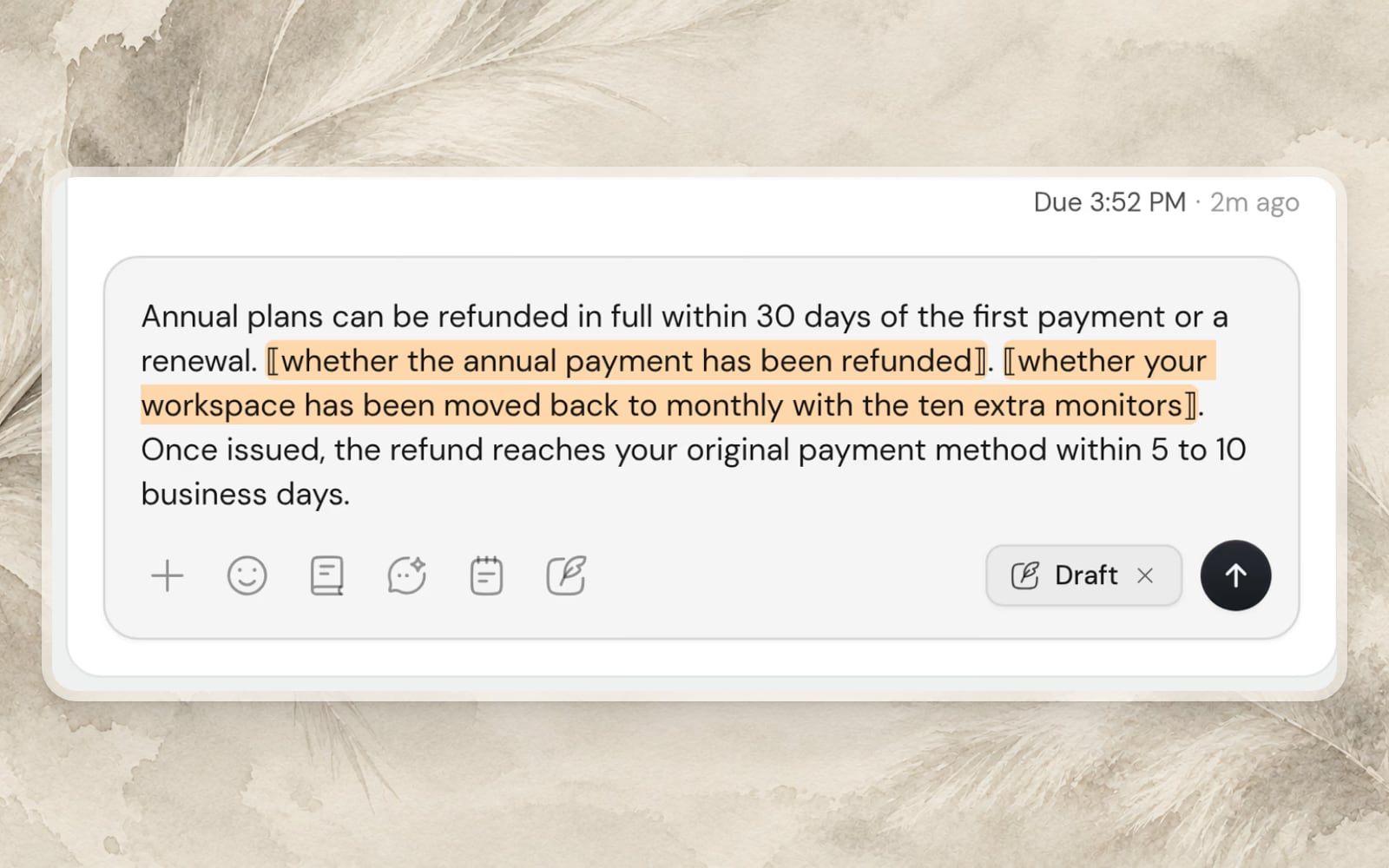
A reply ready in the composer
The reply waits as a draft when a teammate takes a conversation, opens one Aiva is answering, or the customer writes again. Only a teammate’s send delivers the reply to the customer.
Gaps marked for your team
Where the sources lack a fact the business would be held to, such as an amount or a date, the draft marks a gap to fill, and a reply with a gap cannot be sent.
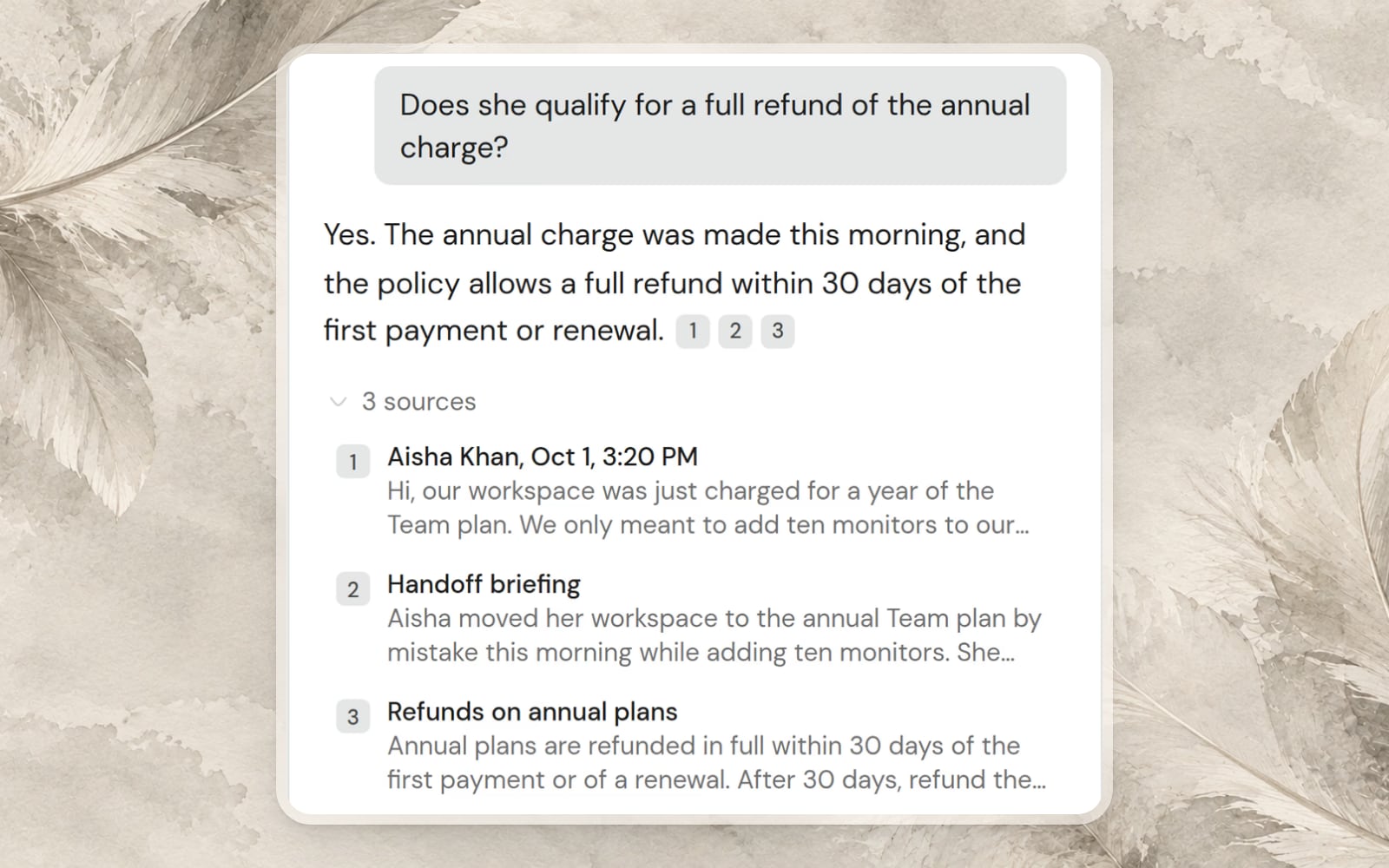
Questions about the conversation
Ask about the customer, the conversation or how to handle it, and the answer cites its sources. Insert the suggested reply into the composer.
Improvements
- Rewrite a replyTurn what you typed into a clearer reply before sending.
- Orders in the draftFor a customer whose email is verified, the prepared reply takes their recent orders into account.
- Unsent replies kept per conversationA reply you started stays with its conversation when you move to another.
Show a campaign to visitors at the moment you choose
Campaigns show a card to the visitors and pages you choose, at the moment you set, and can lead into a conversation with Aiva or your team.
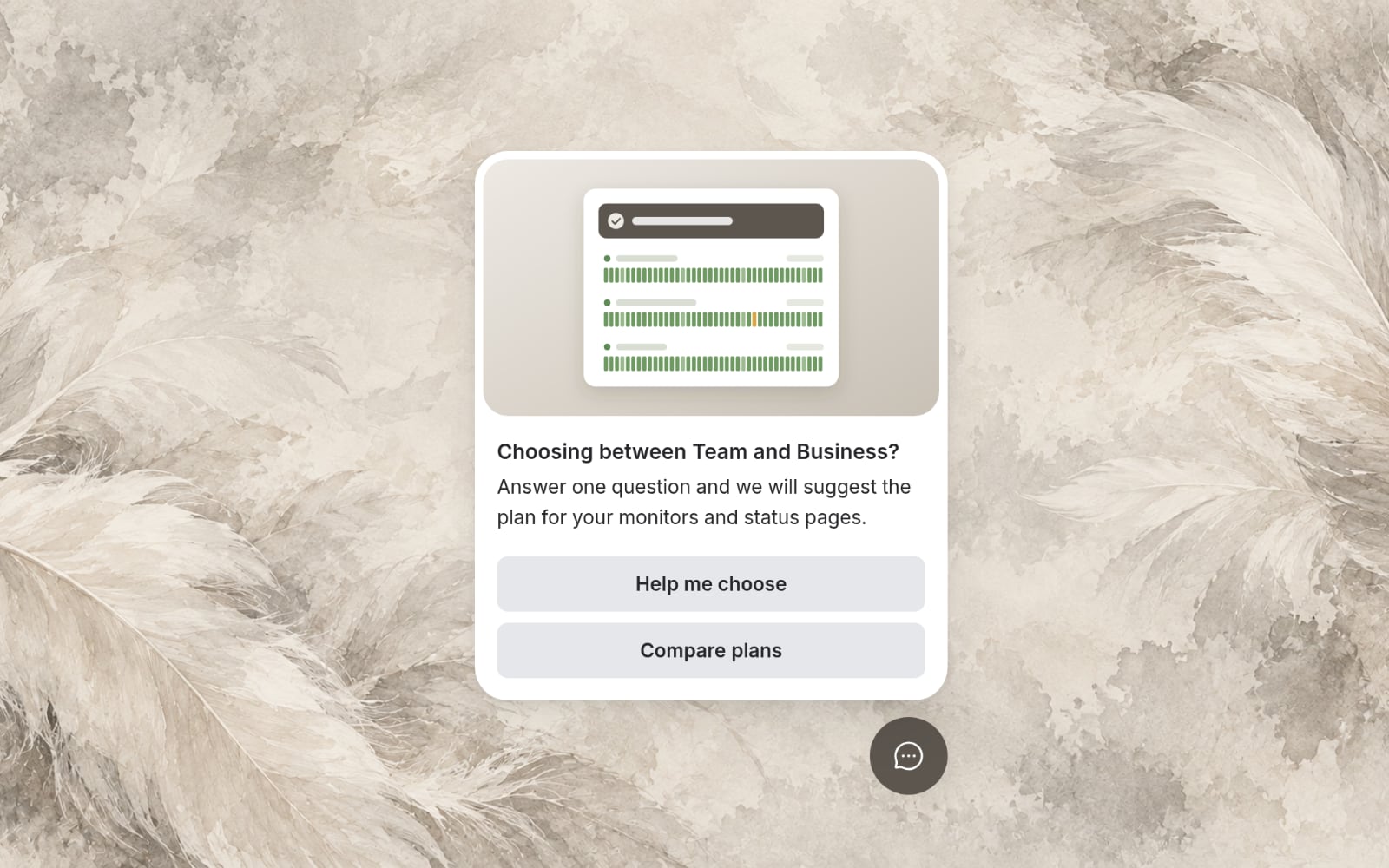
Campaigns built as steps
Lay out a campaign on a canvas: a card, its buttons and where each button leads, up to a conversation.
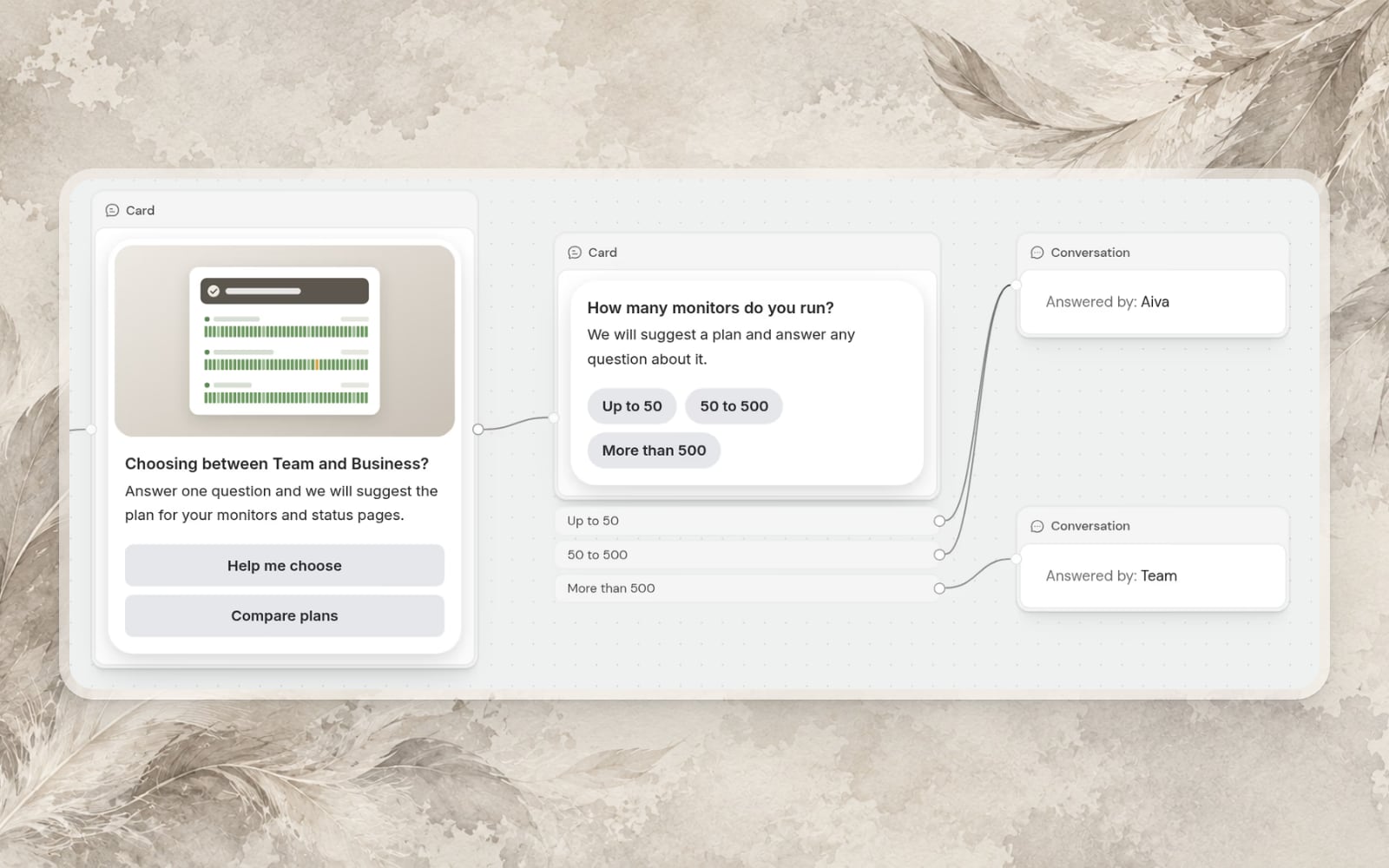
Your existing proactive messages became campaigns and kept their history.
The visitors, the pages and the moment
Choose who sees a campaign and on which pages, and show its card at the moment you pick, such as when a visitor is about to leave.
Events from your website
Record what visitors do on your website with one line of JavaScript, and use those events to show a campaign or to measure its goal.
Read the guideImprovements
- Goals and resultsGive a campaign a goal and follow how many visitors saw the card, opened it and reached the goal.
- Satisfaction ratings on more channelsCustomers rate a resolved conversation in Webchat, on Discord, on Telegram and by email.
- Screenshots from WebchatCustomers can attach a screenshot of the page they are on.
- Webchat in your own wordsWrite Webchat’s greeting, launcher label and other texts yourself.
Route handoffs to teams by channel and by subject
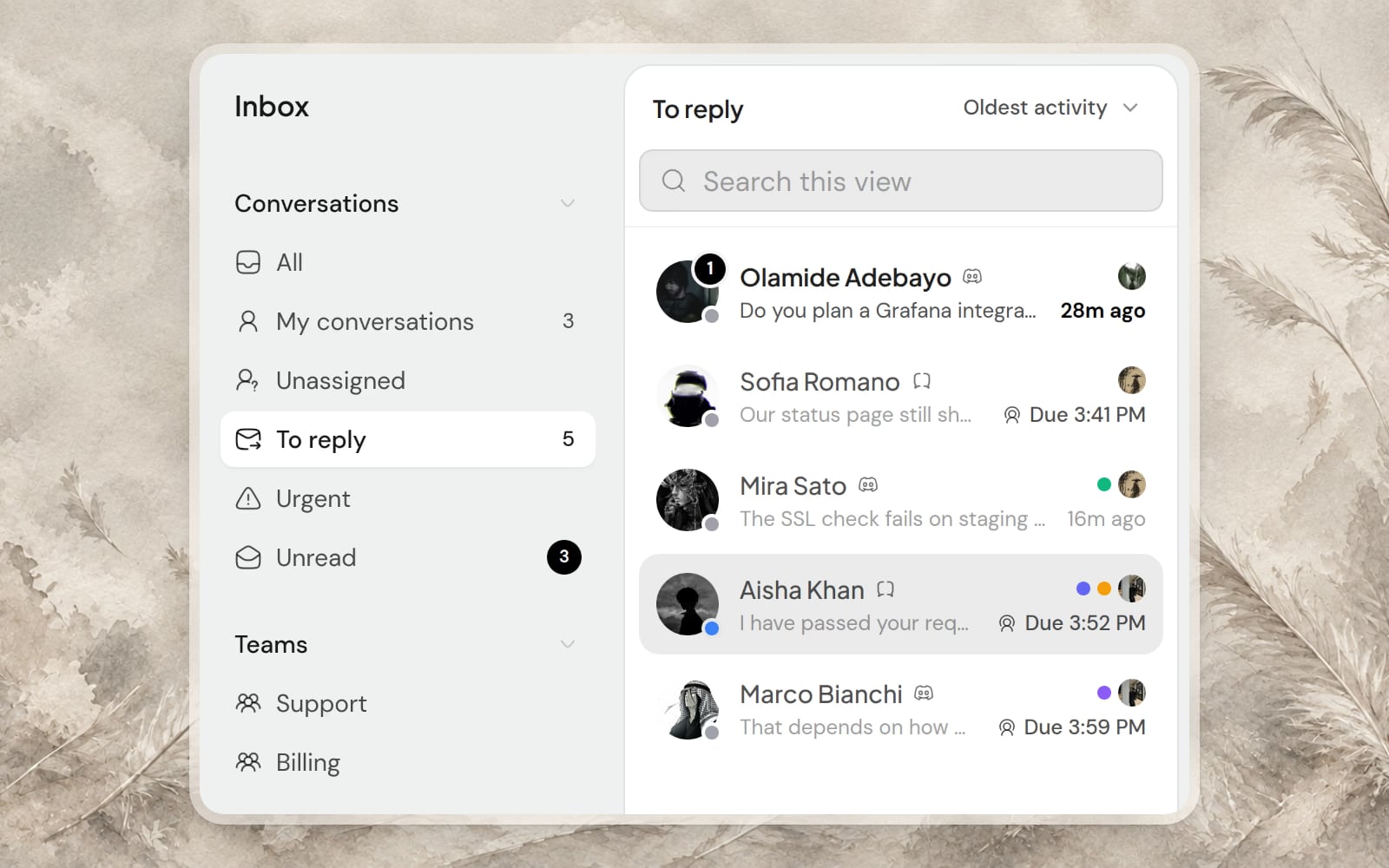
Create teams for the people who answer customers. Each handoff reaches the team that covers it and one teammate responsible for the reply.
Teams
Give a team the channels and websites it answers for. When Aiva hands over a request, Aiva sends the request to the team whose description covers the subject.
Read the guideA teammate responsible for each handoff
Each handoff goes to an available teammate. With a response target, the inbox shows when the reply is due, and Assistify alerts the team’s lead when a handoff passes the target.
Notion and Google Docs in Knowledge
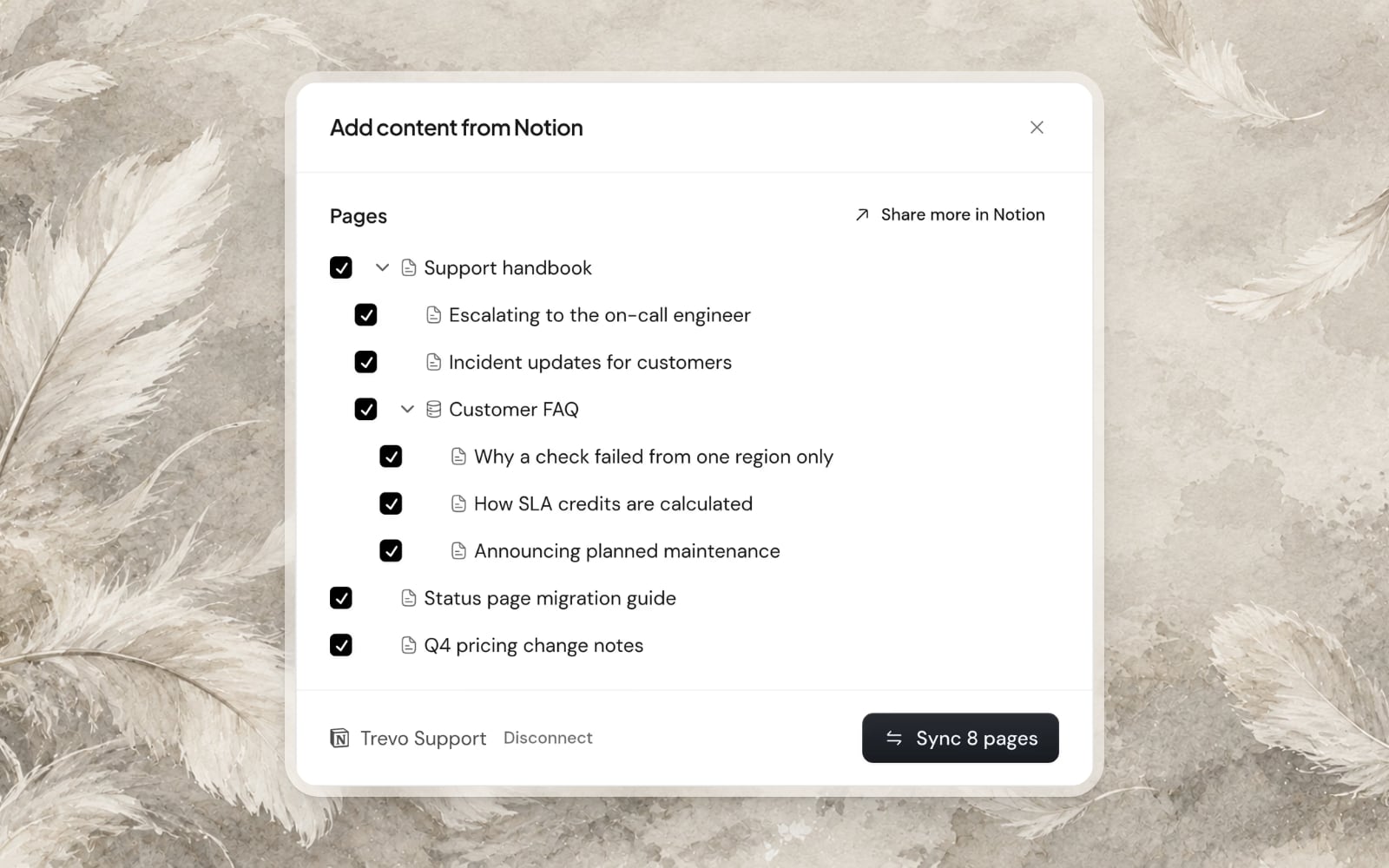
Connect Notion or Google Docs and choose the pages Aiva reads. Your content stays up to date on the schedule you set.
Improvements
- Correct an Aiva reply from the inboxMark a reply as wrong and write what Aiva should have said. Assistify drafts the change that would have prevented the mistake, for you to approve.
- Transfer to another teamHand a conversation to another team with a note.
- Members limited to their teamsLimit a member to the conversations of the teams they belong to.
- ViewersViewers read conversations and write internal notes without taking a seat.
Edit articles with Operator inside the editor
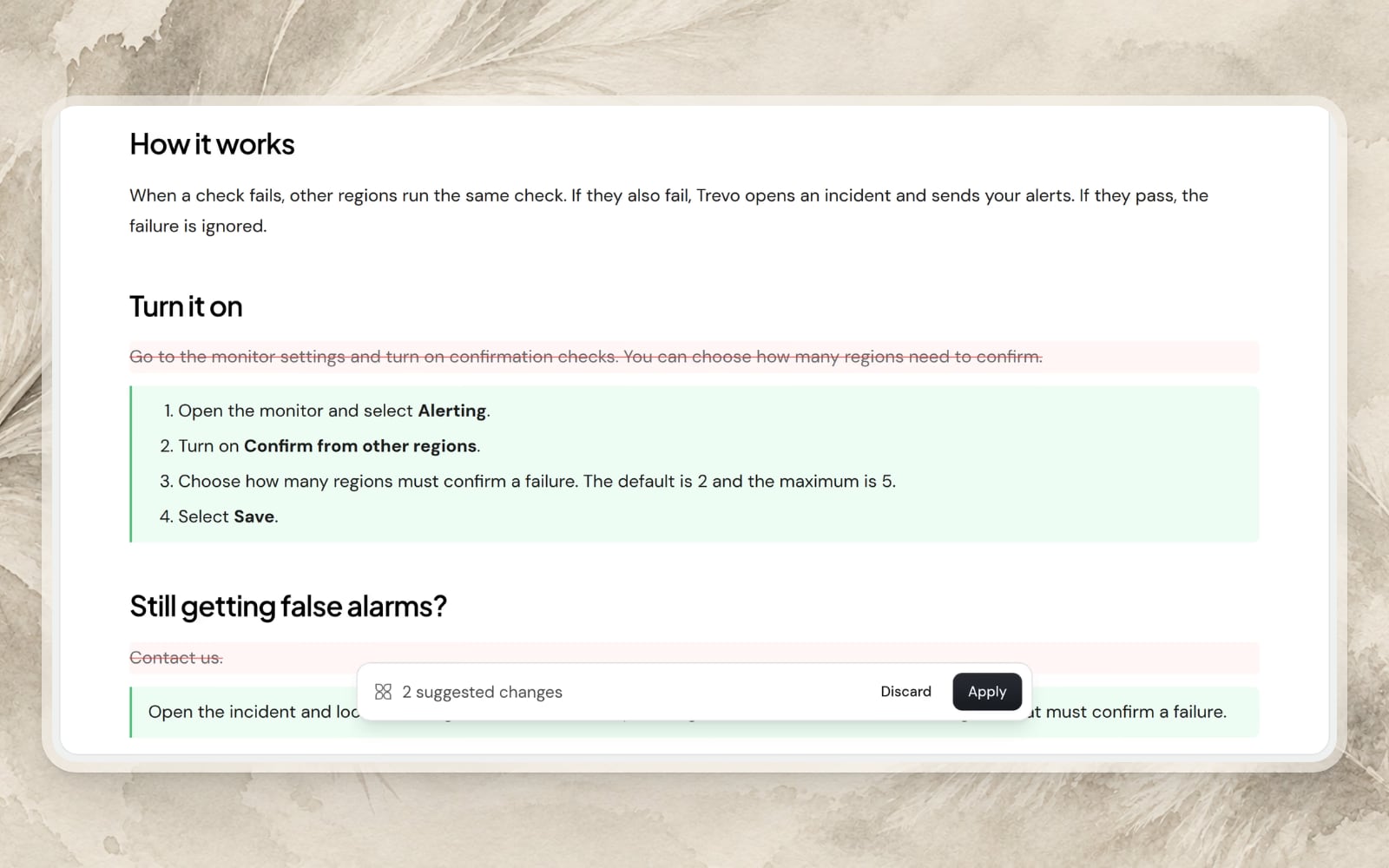
Ask Operator for a clearer passage or a new section, and the change appears in the article you have open. Your help center also takes your layout and colors.
Operator in the article editor
Operator writes into the article as marked changes, and the article changes only when you save. Operator flags any figure that appears in nothing you wrote or attached.
A help center in your layout and colors
Choose the home page’s layout, your colors, the header’s links and the footer. A one-step DNS setup connects your domain at supported providers.
A welcome message in Webchat
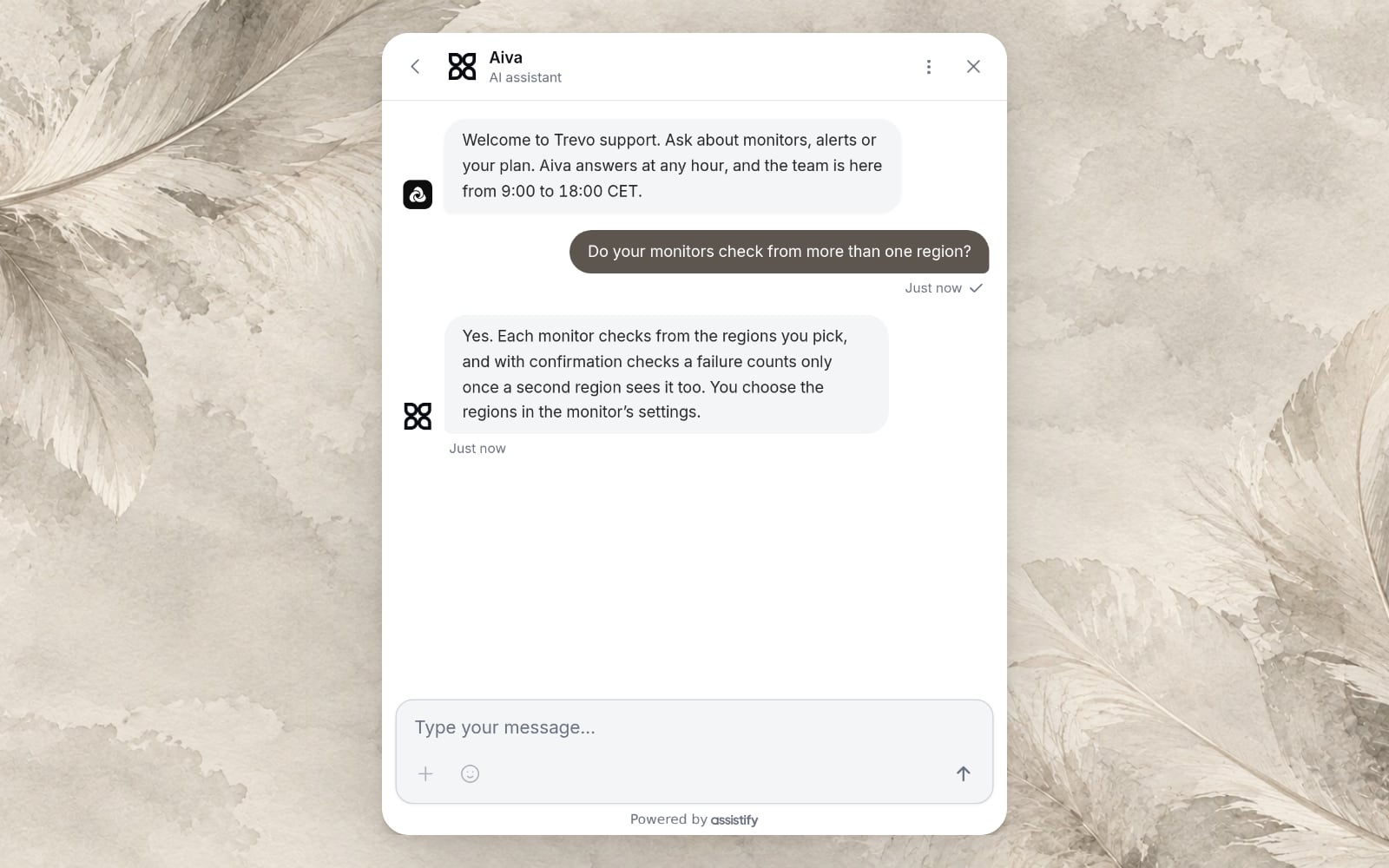
Write the message that opens each new conversation in Webchat. Aiva reads the message as part of the conversation.
Improvements
- Inbox views with their own addressEach view of the inbox has its own address, so you can keep the queue you work from in your bookmarks.
- The detail behind each report figureOpen a figure in Reports to see what it is made of, by channel, by participant and over time.
- A Knowledge reportSee which articles customers read, how they rate them and which searches found nothing.
- Version historyRules, articles and Operator’s memory keep their earlier versions, and you can restore an earlier version.
Publish a help center on your own domain
Write and organize articles in Knowledge, then publish them on a help center at your own domain, with search and your collections.
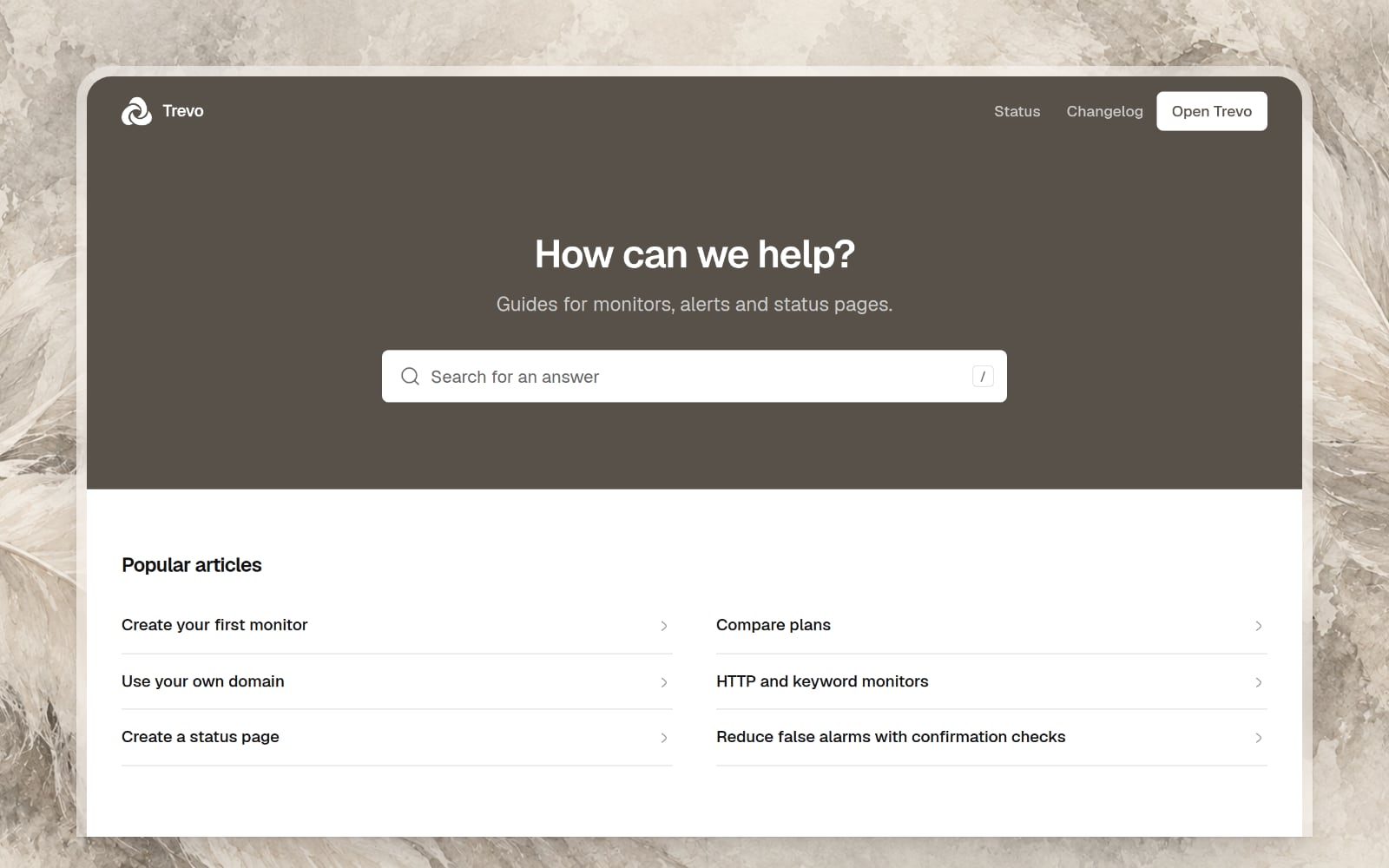
Articles and collections
Write articles in the editor, group them into collections and publish a new version when it is ready. An internal article stays with your team and Aiva.
Read the guideA hosted help center
Your public articles appear on a help center at an address of your own, with search, collections and a link to start a conversation.
Requests in Reports
See what customers ask, grouped into themes, with the number of questions in each theme and how those conversations ended.
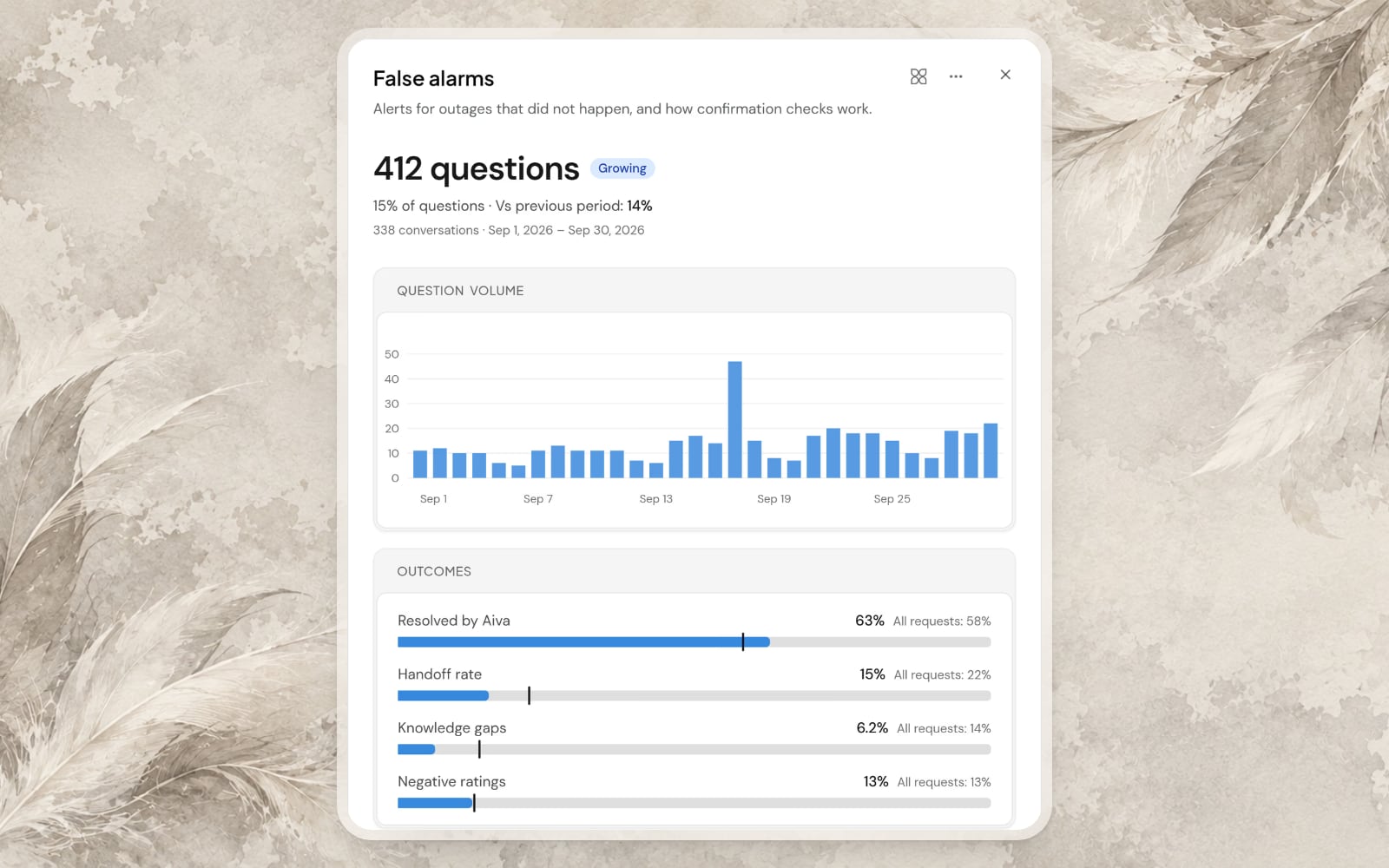
See who resolves your conversations in Reports
See in Reports who took part in each conversation, Aiva, your team or both, and how it ended. Aiva also reads your customers’ subscriptions.
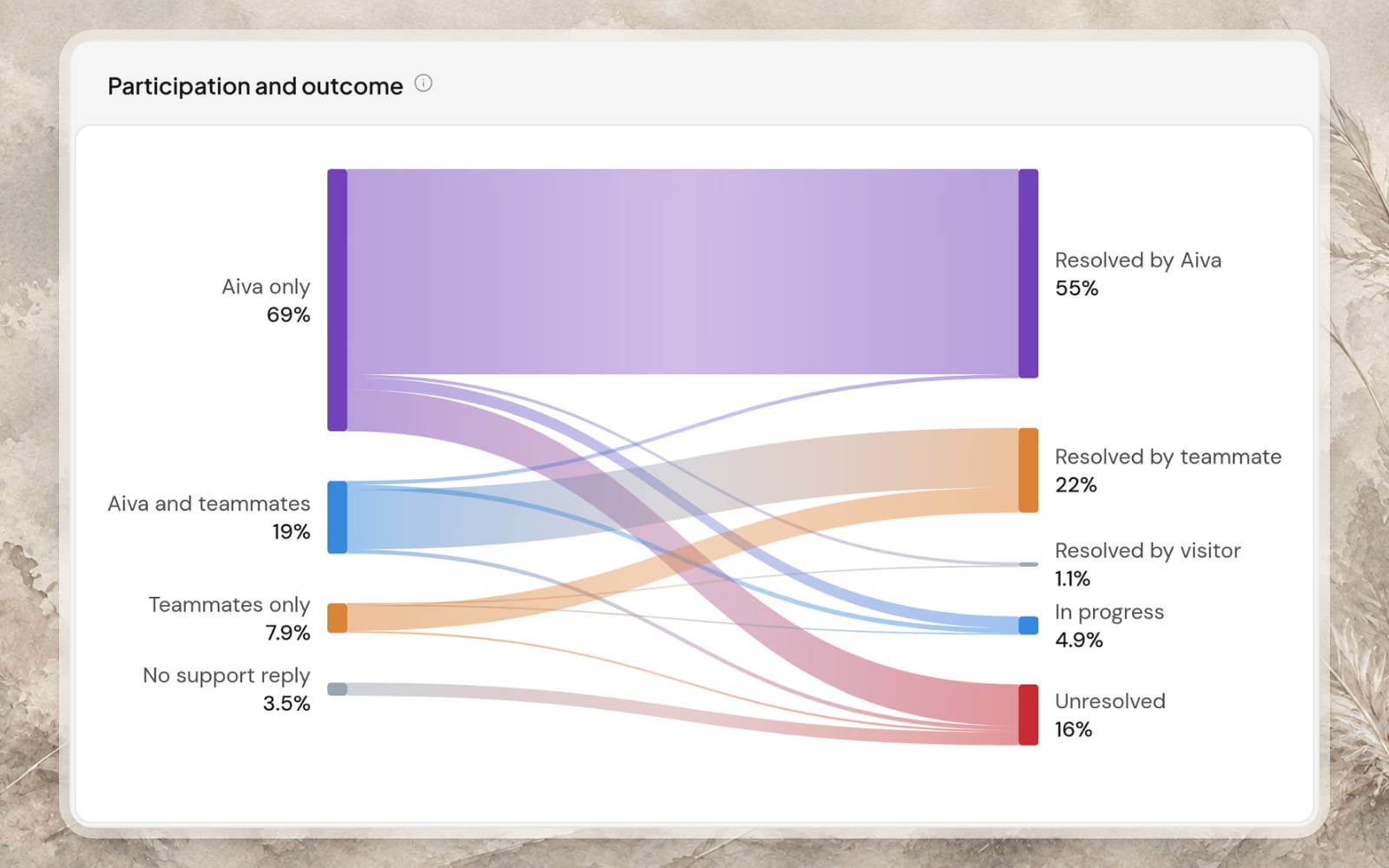
Participation and outcome
One chart follows your conversations from who answered them to how they ended: resolved by Aiva, by your team or by the customer, still in progress, or unresolved.
Subscriptions in Aiva’s answers
On SellAuth, Sell.app, Shopify and Shoppex, Aiva reads a verified customer’s subscriptions and answers about their plan and renewal.
Two actions you can switch on
Aiva can resend an order’s notification email and stop a subscription’s renewal at the end of its period. Each stays off until you switch it on, and works only for a customer who verified their email.
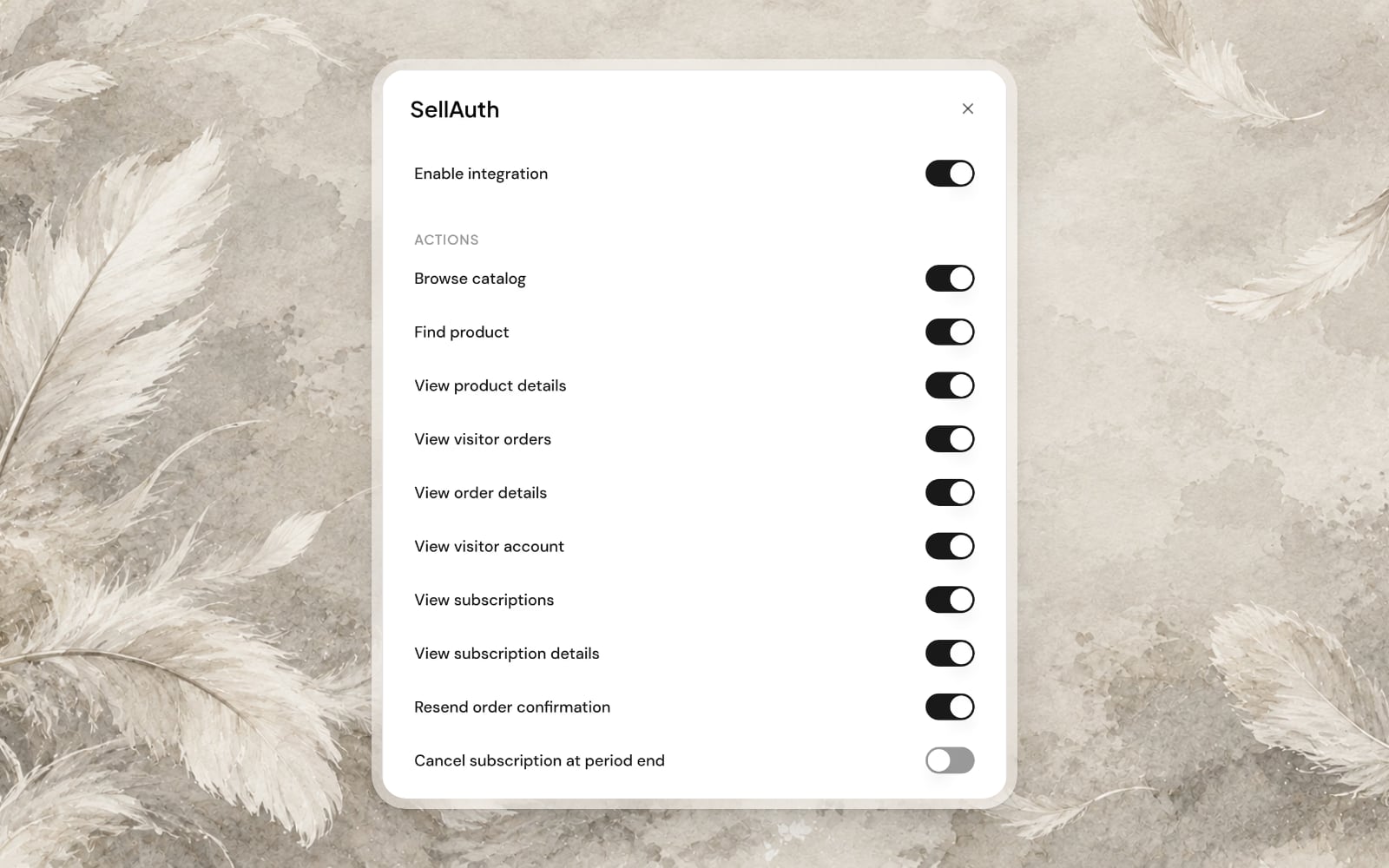
Improvements
- Clearer report figuresEach figure in Reports states its definition and compares the selected period with the previous period.
Answer customers on Telegram with your own bot
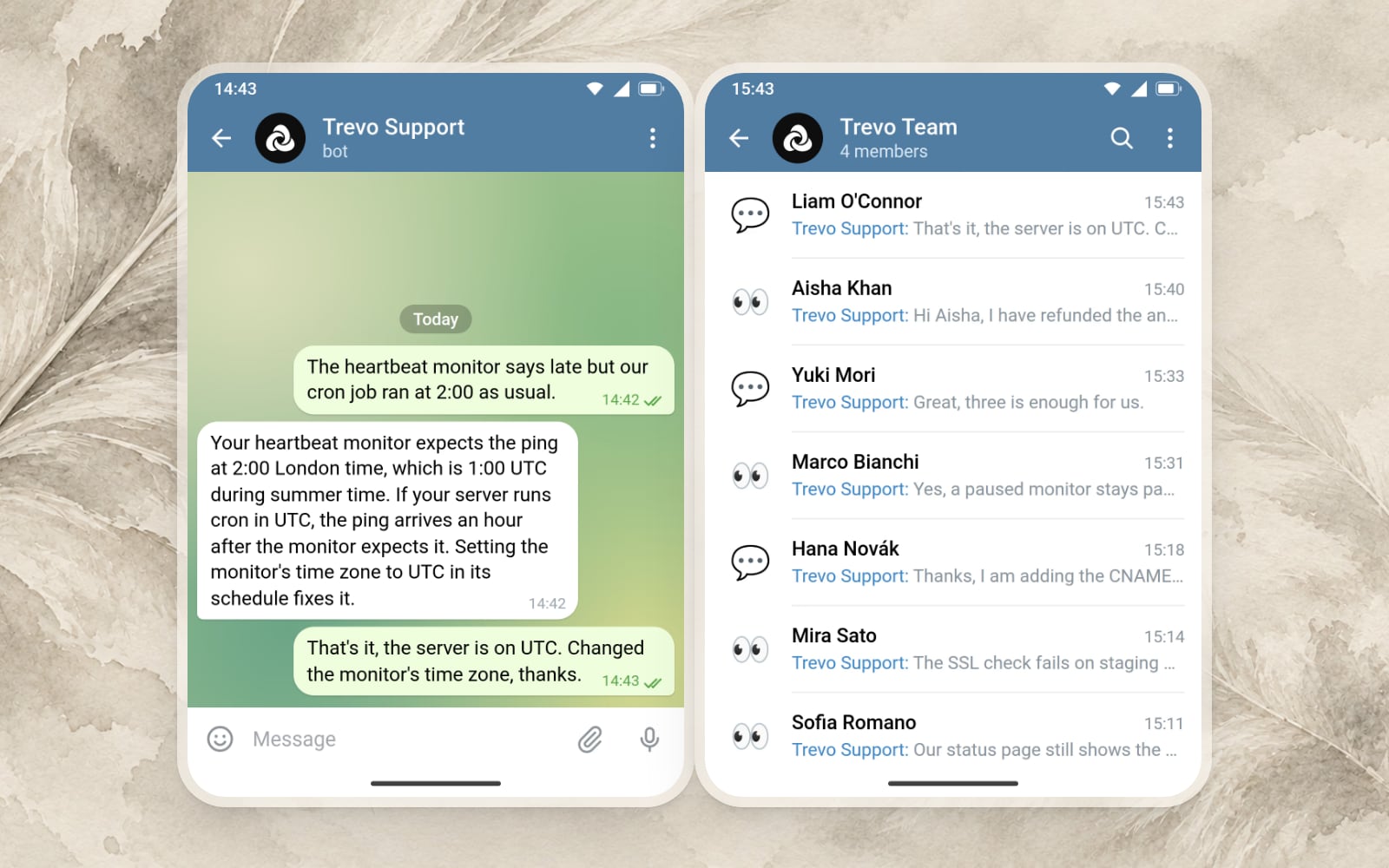
Connect your Telegram bot and Aiva answers customers in private chats. Your team takes over from the inbox or from a Telegram group.
Telegram private chats
Connect a bot you created on Telegram. Aiva answers the customers who write to the bot, and your team answers the conversations Aiva hands over from the inbox.
Conversations in a Telegram group
Your team can follow each customer as a topic in a Telegram group and reply from there.
Telegram Business
Aiva can answer the messages your customers send to your own Telegram account.
Improvements
- Operator from where you workOpen Operator from a theme, an article or a rule, with that subject already in the conversation.
- Files and next steps in OperatorAttach a file to a request. After each answer, Operator suggests related requests you can send next.
Have Operator run a request every day or every week
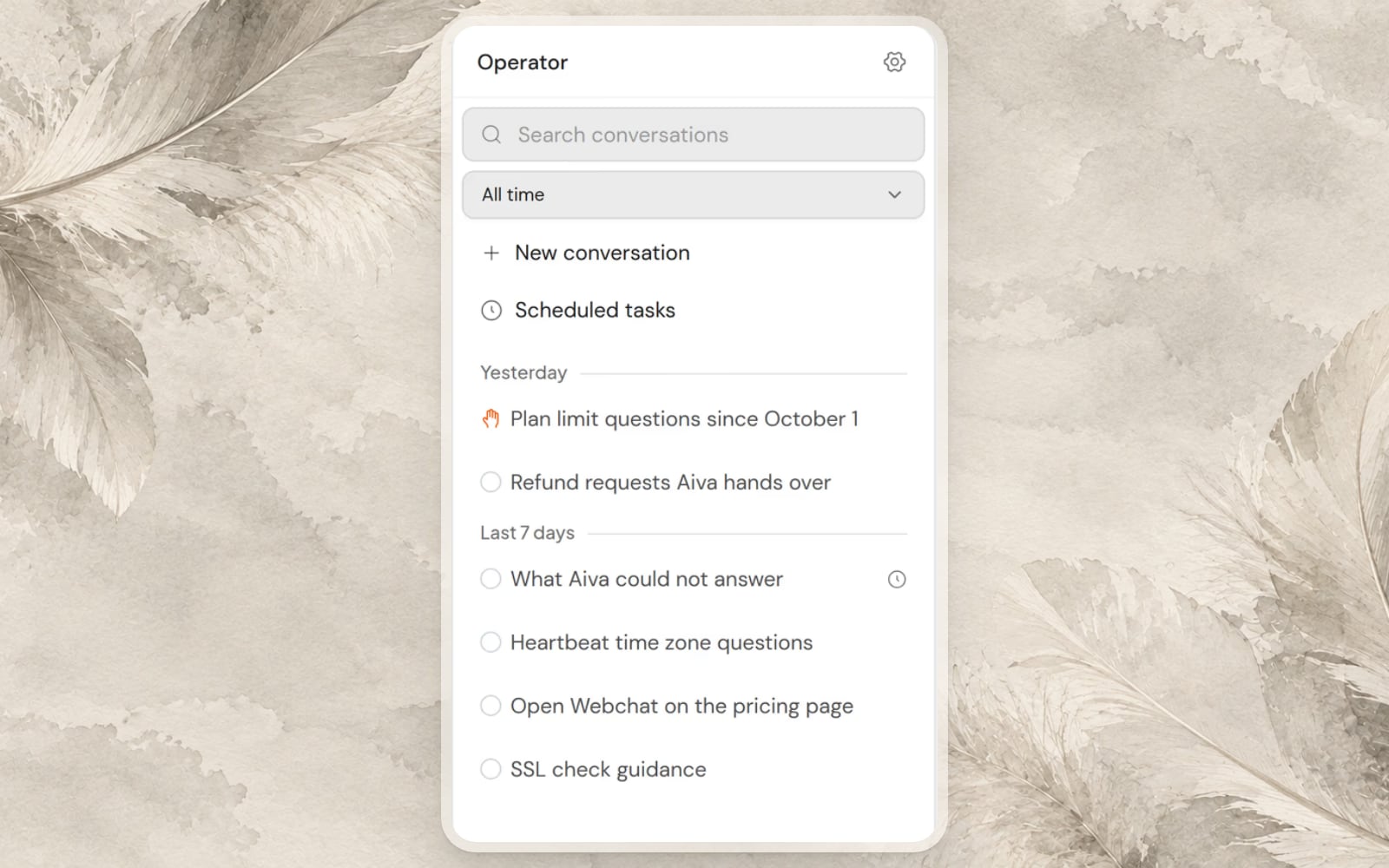
Operator can run a request daily, on weekdays or weekly, and write back when there is something to review. It also remembers how you like the work done.
Scheduled tasks
Approve a request once and choose how often it runs. Each run has its own conversation, and any change it suggests waits for your approval.
A memory of how you work
Operator keeps what you tell it about your business and your preferences from one conversation to the next. You can read and edit that memory.
What Aiva is doing, shown in Webchat
While Aiva prepares an answer, Webchat shows the step under way, such as checking the customer’s orders.
Improvements
- Undo a change you approvedPut back any change you approved through Operator, from its conversation or from the list of changes.
- An email confirmed in the chatA customer who types their email address in the conversation receives a link to confirm the address, and Aiva can then look up their orders.
Ask Operator to update Aiva’s rules and knowledge
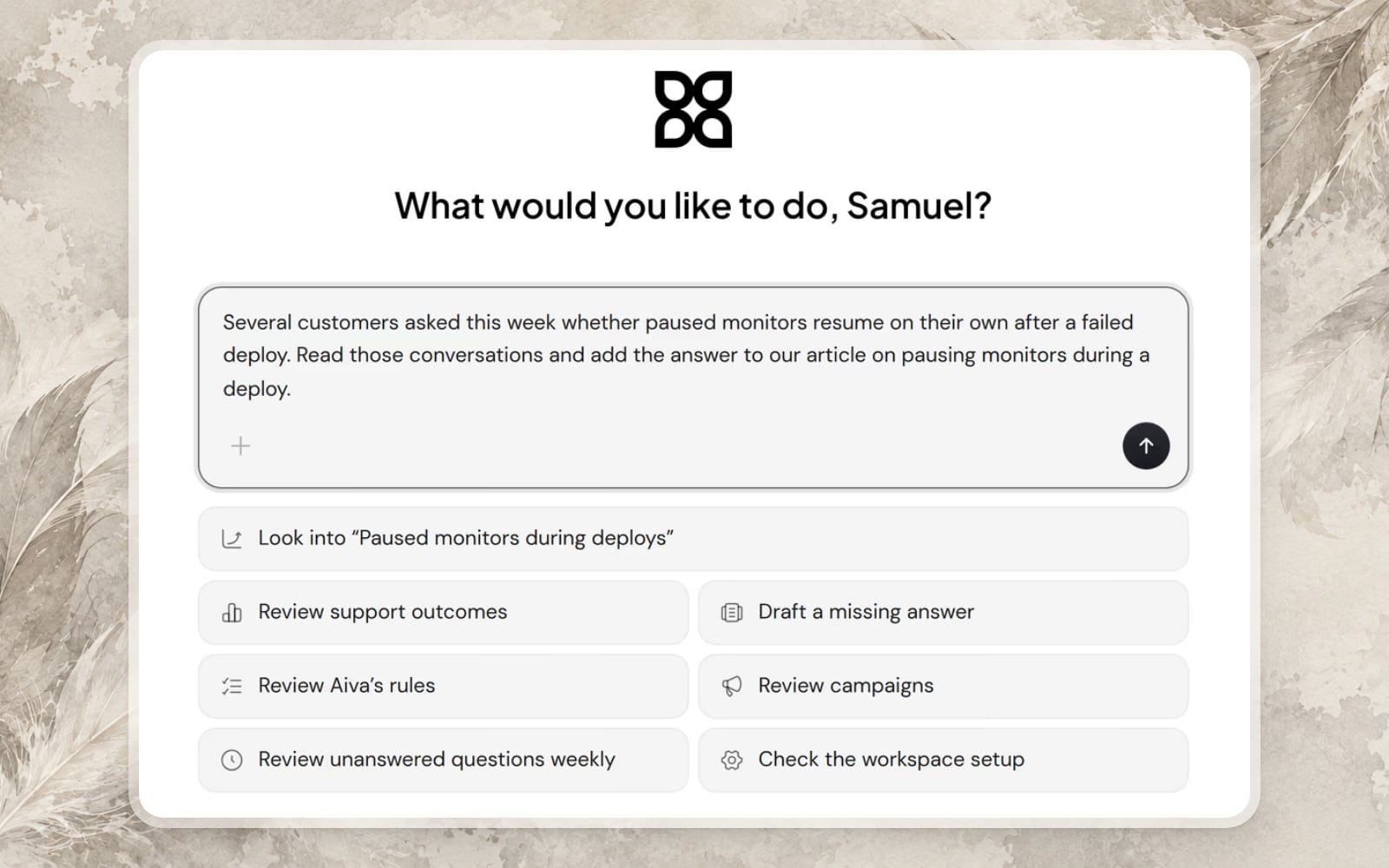
Tell Operator what should change in your own words. Operator reads your workspace and drafts the change, and nothing is saved until you approve the draft.
Operator
Describe a problem, such as a question Aiva keeps handing over. Operator reads your articles, your rules and what customers asked, then offers a change for you to approve or adjust.
Rules written by your workspace
Write how Aiva should handle a kind of request, which words it should use and which sources it should rely on. Before you save a rule, you see the text Aiva will follow.
Aiva’s name and picture for each Webchat
Choose the name and the avatar your customers see on each Webchat.
Improvements
- A request the customer no longer needsA customer waiting for your team can withdraw a request they no longer need.
Reply to Webchat customers from a Discord thread
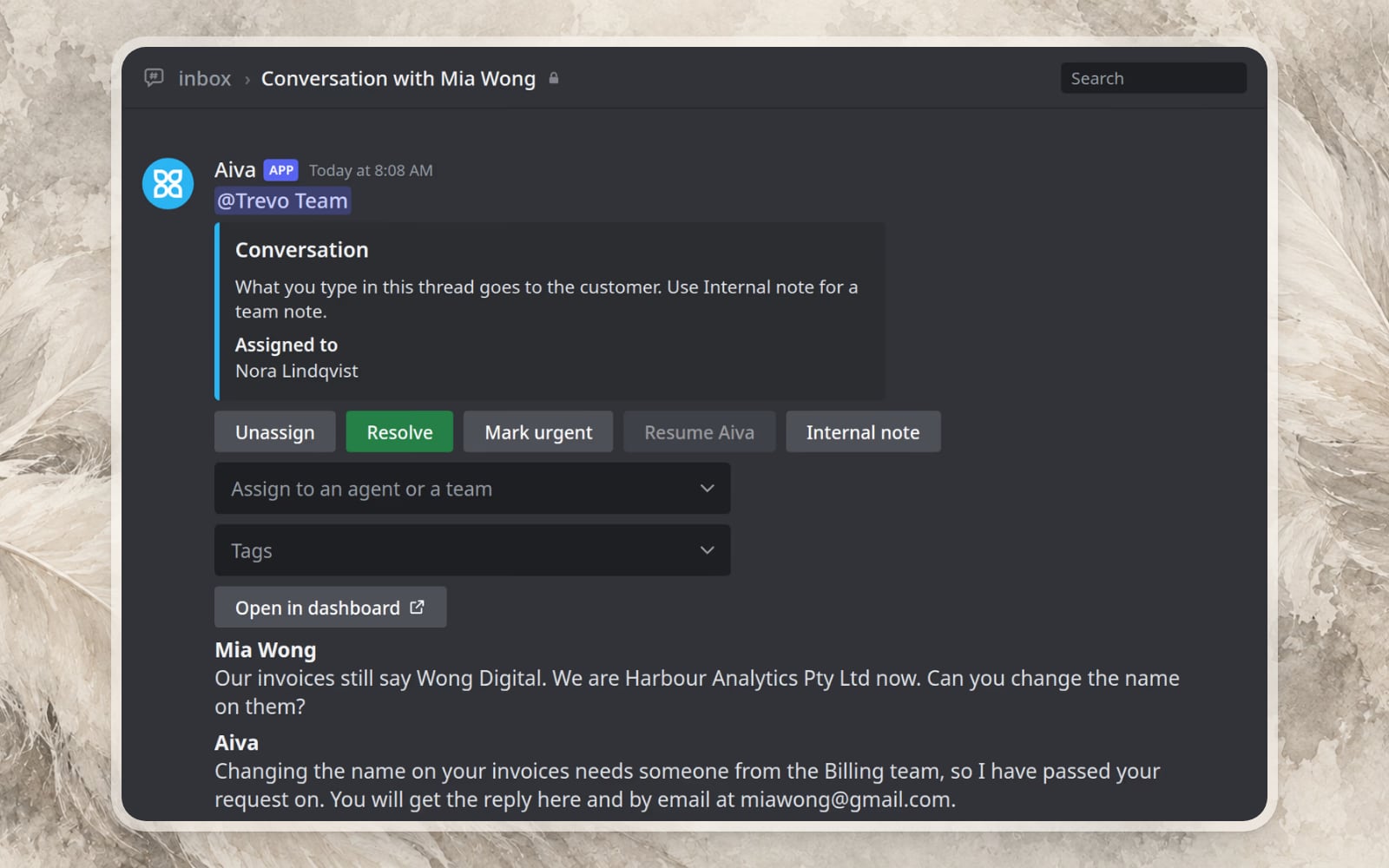
Follow Webchat conversations in private threads on your Discord server, and answer customers from the thread.
Answers written in the thread
A message a teammate writes in the thread reaches the customer in Webchat under the teammate’s name.
Read the guideConversation controls in Discord
The controls your team uses in the inbox, from taking a conversation to resolving the conversation, sit at the top of each thread.
Improvements
- Read receipts in the threadA mark on each reply shows that it reached the customer, and a second mark shows the customer has read the reply.
- All your notifications in one listThe bell in the dashboard holds every notification addressed to you.
Archive finished conversations and keep their history
Archiving takes a finished conversation out of your inbox and keeps its messages and notes on record.
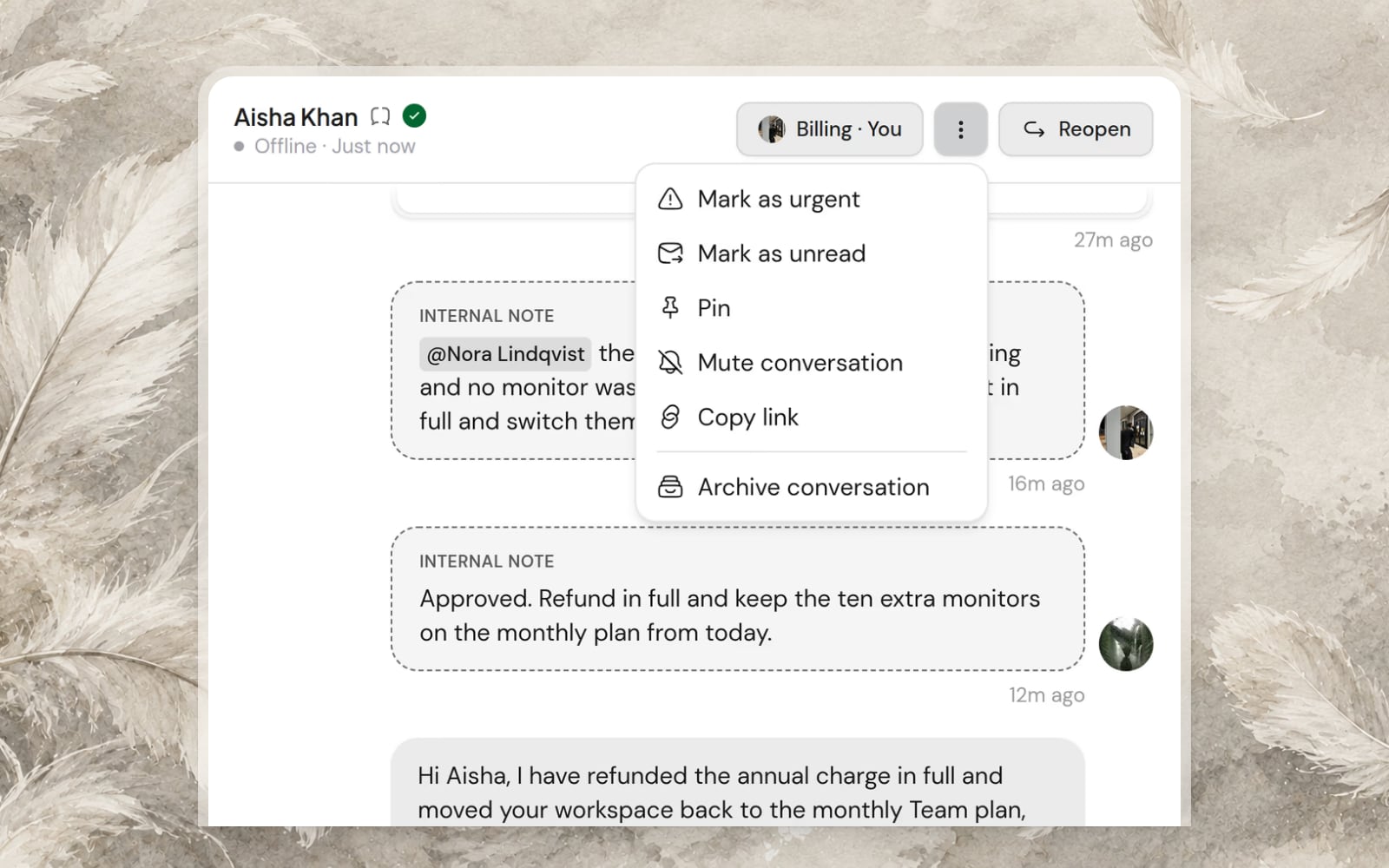
Archive a conversation
Clear a finished conversation from your inbox and keep its messages, notes and history on record. You can return an archived conversation to the inbox at any time.
Improvements
- Missing API permissions, named at connectionWhen you connect a store with a key that lacks a permission an action needs, Assistify names the permission.
- Answers in the language of the conversationAiva follows the language the customer writes in before the language of their browser.
- Discord files as attachmentsFiles a customer sends on Discord appear in the inbox as attachments your team can open.
Aiva asks what a request is about before handing over
When a customer asks for a person without saying why, Aiva asks for the subject first. Outside your opening hours, Aiva says when your team is back.
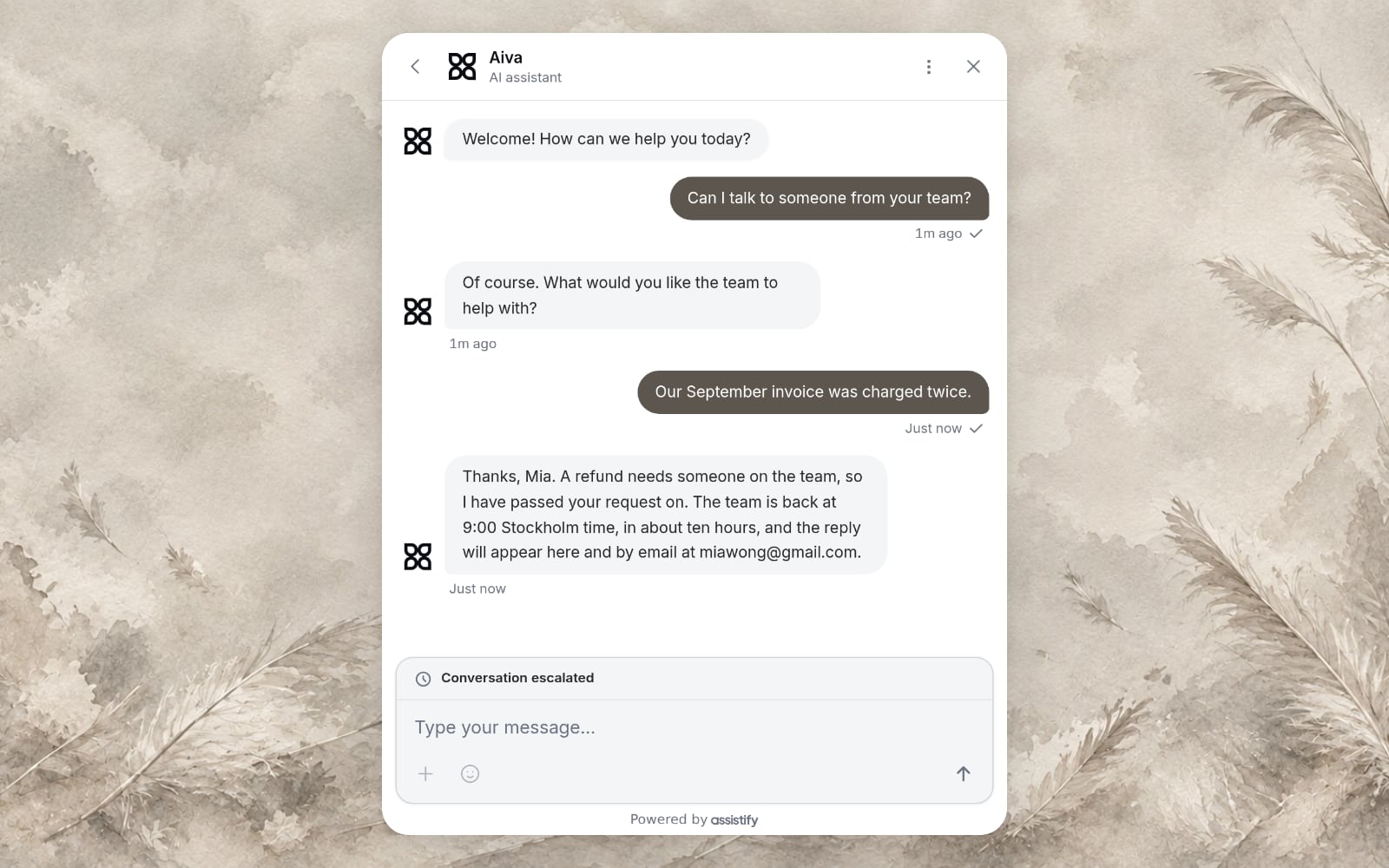
Requests that reach your team with a subject
A customer who only asks for a person gets one short question about what they need, so the request reaches your inbox with its subject stated.
Opening hours in Aiva’s answers
Outside your opening hours, Aiva still passes the request on and tells the customer when your team opens next.
Improvements
- Steps as a listWhen an answer has steps, Aiva writes them as a numbered list.
- Translations that keep the contextLive translation reads the conversation around each message and keeps names and product terms as written.
- Websites where Webchat was refusedWhen Webchat loads on a website you have not allowed, your dashboard shows the address and lets you allow it in one step.
Give visitors questions to tap when Webchat opens
Add the questions customers ask most to Webchat, ready to send in one tap. Webchat can also sit as a message bar centered at the bottom of your page.
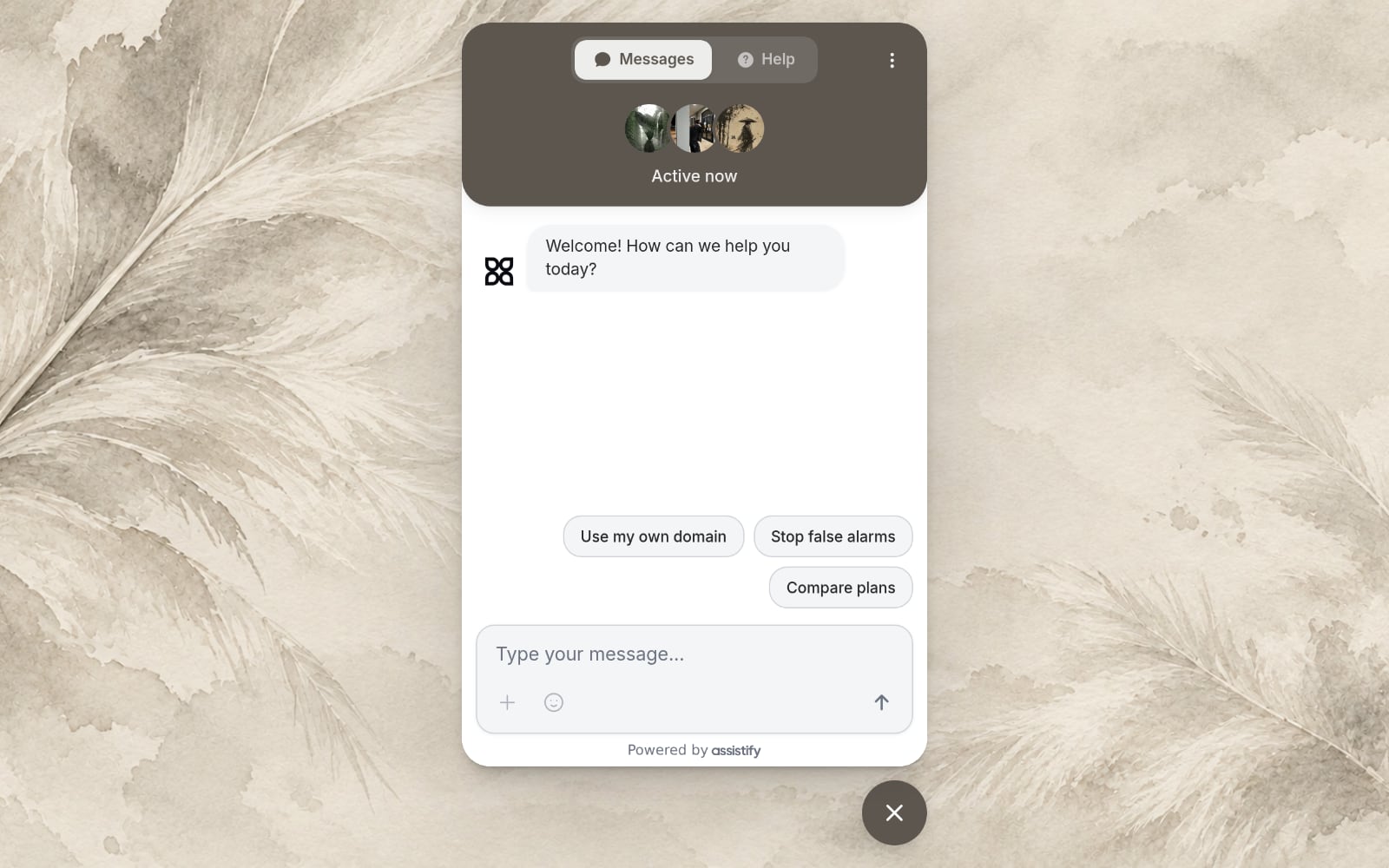
Conversation starters
Write the questions your customers ask most and choose what each one does: ask Aiva, send an answer you wrote, or open a page. Each Webchat keeps its own set.
Webchat as a message bar
Webchat can stand as a message bar at the bottom of your page that cycles through your starters and opens into the conversation when a visitor clicks.
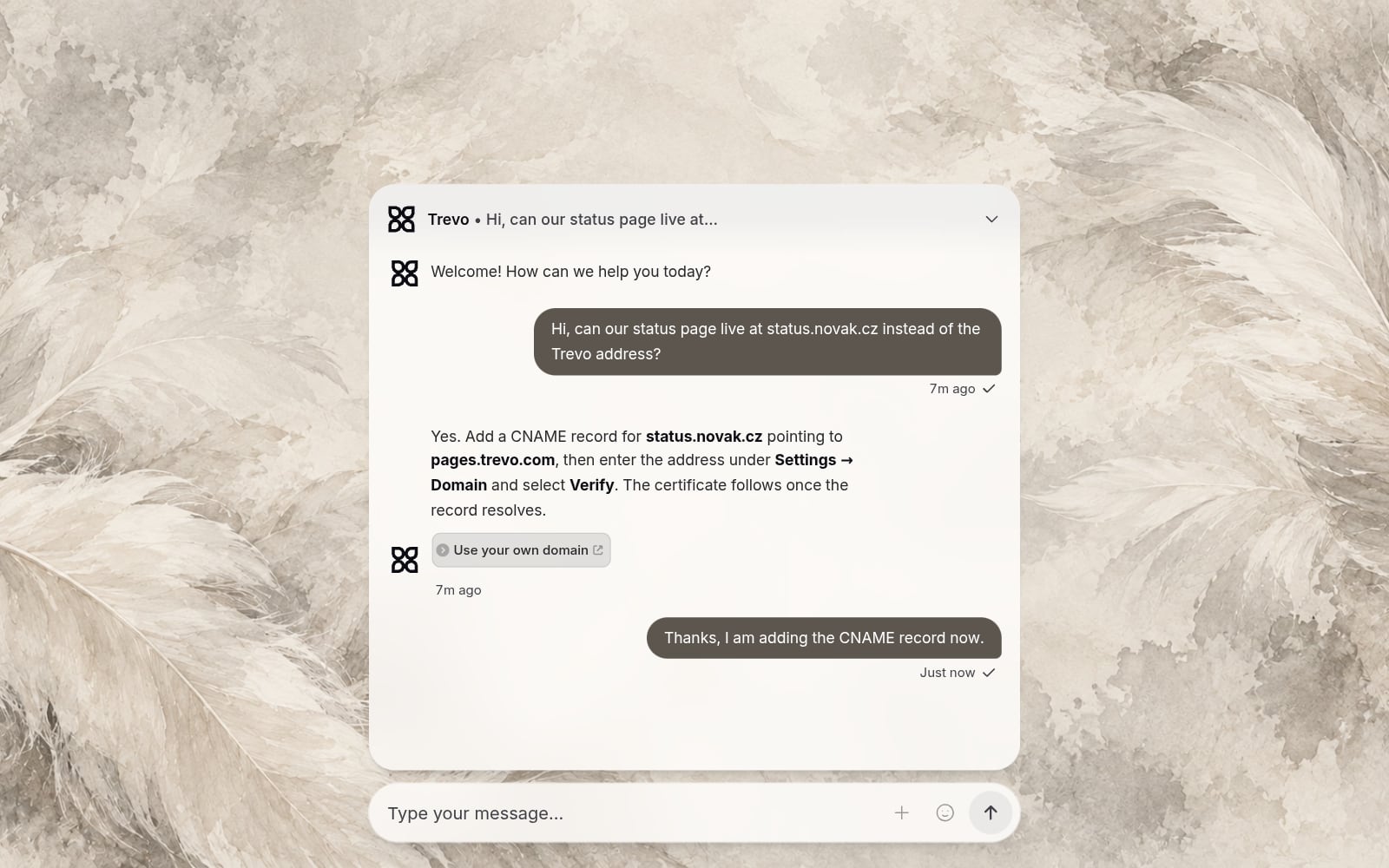
Replies by email for customers who left
When your team answers a customer who has left your website, Assistify emails the customer at the address on record, with a link back to the conversation.
Improvements
- A glass style for WebchatGive Webchat a frosted glass finish that lets your website show through.
- The typing teammate’s nameWebchat names the teammate who is writing a reply.
Translate customer conversations in both directions
Assistify translates each customer message into your team’s language and each reply into the customer’s. Aiva also answers on Discord.
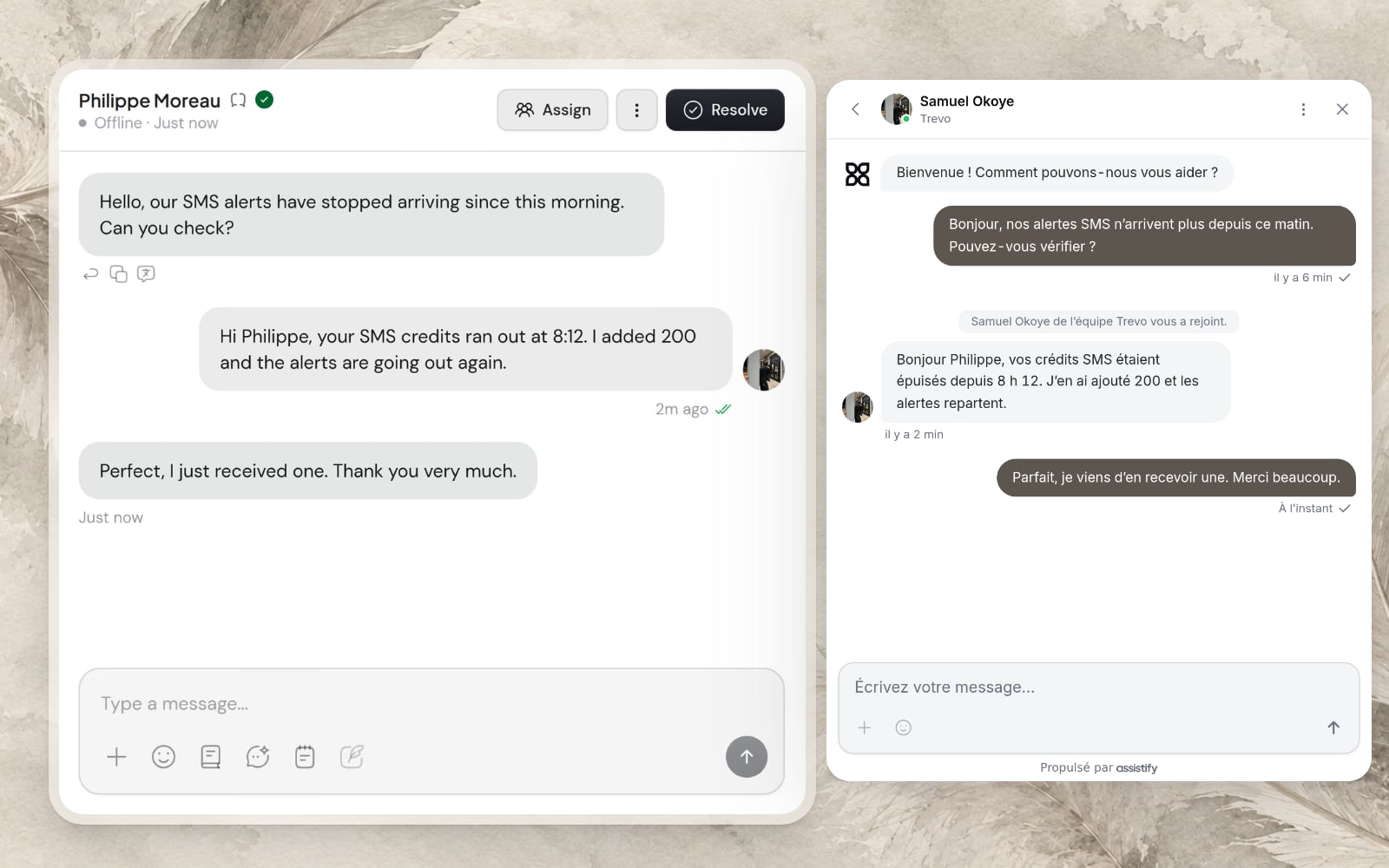
Live translation in the inbox and in Webchat
A customer’s message appears in your language in the inbox, and the original stays available from the message. Your reply reaches the customer in their language in Webchat.
Aiva in your Discord server
Aiva answers in your ticket channels, when someone mentions Aiva in a channel, and privately through a slash command. Your team follows each Discord conversation from the inbox.
Read the guide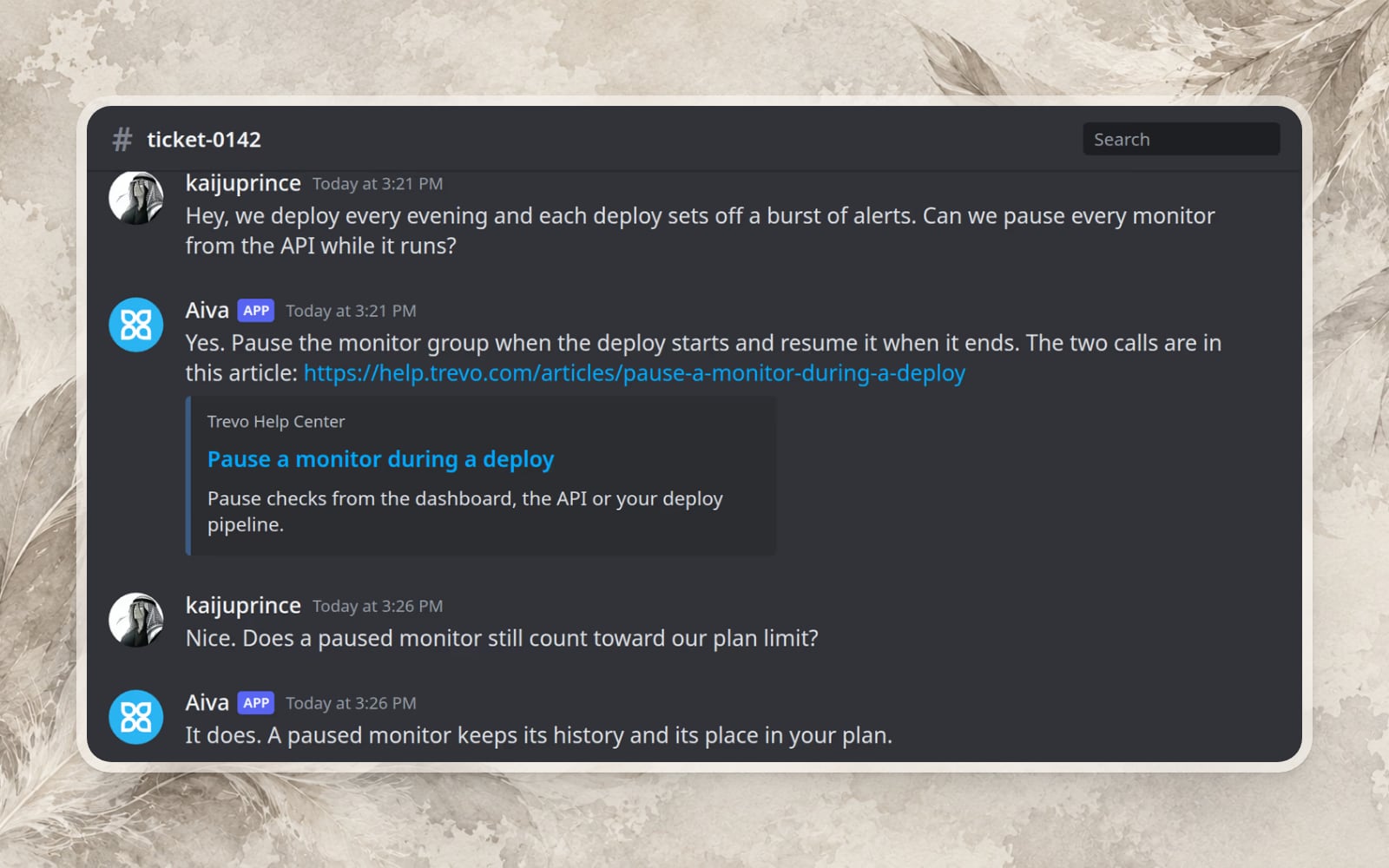
A Webchat for each brand
Each Webchat has its own name, logo, colors and integrations. One script shows the Webchat that belongs to each of your domains.
Insights on what customers ask
Assistify groups customer questions by subject. When a subject keeps coming back, you get an article drafted from your team’s own answers, and once you apply a change Assistify compares the conversations before and after.
Improvements
- Aiva over the APIDrive Aiva from your own application. Access is available on request.
- Contacts filtered by identificationFilter your contacts by whether they are verified, unverified or anonymous.
- An icon-only launcher on phonesWebchat’s launcher can show as a single icon on small screens.